AI Video Tools Compared (2026): How to Pick the Right One
12 AI video tools, including HeyGen, OpusClip, CapCut, Vrew, Canva and Remotion, sorted by the video you're making, plus a two-tool trial to run first.

Cutting a 30-second short from a 40-minute webinar and turning the same webinar into a training video presented by an avatar are completely different jobs. The first means finding a stretch of the original where the context holds up. The second depends on a new script and how well the presenter delivers it. Both start with a search for "AI video tools", but the right tool splits at the starting point.
Features overlap a lot. Comparing spec sheets for things like auto-captions usually leaves you more confused, not less.
Which tool to try first, by the video you're making
| Video you want to make | Tools to try first | What to check in the trial |
|---|---|---|
| Training or how-to video read by a presenter | HeyGen, Synthesia | Pronunciation of your product names, pauses after sentences, changing one line |
| Shorts cut from webinars or interviews | OpusClip | Whether the clip makes sense without what came before it |
| Recorded lectures or podcasts tidied up by transcript | Vrew, Descript | Proper nouns in the transcript, whether speech still flows after silences and filler words are cut |
| Footage you shot, edited cut by cut | CapCut | Whether faces and captions get cropped in vertical |
| A blog post turned into a short video with scenes | Pictory, InVideo | Whether the chosen photos and clips actually support the script |
| Thumbnails, carousels and short videos made as a team | Canva | Whether the Brand Kit's logo, colors and fonts carry into the video |
| Videos produced repeatedly from code and data | Remotion, HyperFrames | Whether changing one input re-renders the same layout |
| Product or numbers explainers, made and posted regularly | Draft | Whether you can add real product screens and schedule the edited version to your channels |
Pick just two from the table. Trial three or more at once and you'll spend more time on sign-ups and settings than on the results.
Should a person speak, or should the screen explain?
If someone needs to talk to the viewer, look at avatar tools. If the video has to show numbers and a flow, look at graphics- or stock-led tools. Even internal training can go either way depending on the content.
Video led by a presenter
- Walking new hires through how to request time off
- An avatar from HeyGen or Synthesia delivers the script
- Test pronunciation first with team names, internal acronyms and dates
Video where the screen explains
- Putting "180 last week, 240 this week" side by side
- Stock scenes in Pictory or InVideo, code-drawn charts in Draft
- Test with real product screens and the original numbers
HeyGen is strong at lifelike avatars, digital twins of your own face and voice, and lip-synced translation of footage you already have. Synthesia adds enterprise training features such as SCORM export for your LMS. If you plan to put a screen recording next to the avatar, check that the button labels are still readable. HeyGen avatars, Synthesia video creation docs
Draft has no avatars or lip-sync. Instead it draws numbers, charts, maps and large type in code, so text never garbles, and adds stock or AI images only to the scenes that need them.
Starting from text or a topic? Look at what fills the screen
Tools that start from a post or a topic, with no source video, produce fairly similar scripts. The difference is what ends up on screen.
| Tool | What fills the screen | A good fit when |
|---|---|---|
| Pictory | Stock footage matched to each sentence | You summarize a long post as captions over live-action stock |
| InVideo | A montage of stock and generated footage | You want longer videos fast and edit them in a timeline editor with an editing agent |
| Canva | Designs built from templates on a canvas, plus AI clips | A team makes thumbnails, carousels and video in one place |
| Draft | Code-drawn charts, numbers and maps, stock, your files, AI images or video only where needed | Figures and product details must be exact and go straight to scheduled posts |
For the trial, use a post with two or three numbers in it. You'll see right away whether a tool drops a generic shopping clip next to "repeat purchases went up" or actually puts the figure on screen. Pictory script-to-video guide, InVideo AI video generator, Canva video editor
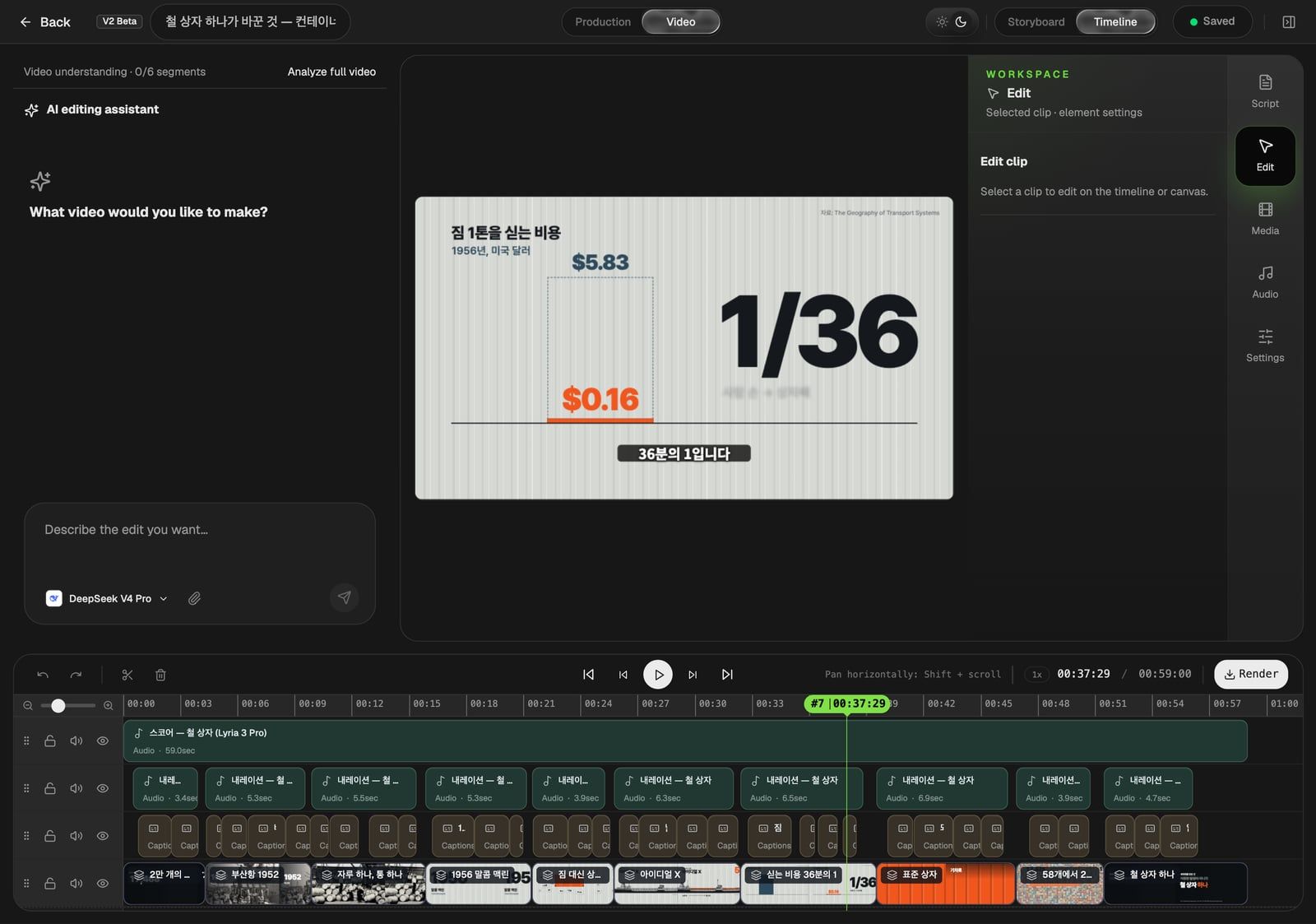
How Draft turns a post into a video is covered in blog to video.
Have long footage? Pick one 30-second stretch yourself first
If you already have recordings, start with a tool that cuts and polishes rather than one that generates from scratch. These four split by how they handle the original.
| Tool | How it works | Best source material |
|---|---|---|
| OpusClip | AI finds highlights and cuts them, then adds captions, brand templates and AI B-roll on top | Podcasts, webinars and livestreams that pile up every week |
| Vrew | Edit like a document while reading speech-recognition captions, delete silent gaps, translate captions into 100+ languages | Talk-heavy recordings like lectures and interviews |
| Descript | Edit the transcript and the video follows; remove filler words and clean audio with Studio Sound | Podcasts and screen-recorded tutorials |
| CapCut | You set cuts, effects and transitions on the timeline yourself, with lots of templates | Vlogs you shot, or clips where you've already chosen the stretch |
When you test OpusClip, first pick a 30 seconds you'd be happy with yourself, then compare it against the result. A common miss is a clip that opens on the conclusion and makes no sense without the setup, or a vertical crop that follows the speaker late when several people talk. If you've already chosen the stretch and most of the work is nudging captions and cuts by hand, editing that same stretch in CapCut or Vrew is usually faster. OpusClip ClipAnything, CapCut desktop video editor, Vrew official site, Descript official site
Developer team? Build the second video too
If you take four metrics every week and turn them into the same branded video, building the second video matters more than the first. There are three options to look at here.
| Remotion | HyperFrames | Draft | |
|---|---|---|---|
| Scene authoring | React code | HTML, CSS, GSAP | HTML, CSS, GSAP plus 34 blocks |
| Setup and rendering | Set up your own server, AWS Lambda or browser rendering | Install the CLI (Node.js, FFmpeg) or the desktop Studio app | Nothing to install; Draft's servers render |
| AI voice, stock, music | Wire up external APIs yourself | In the Studio app and agent skills | Built in |
| Social posting and automation | Build it yourself | Build it yourself | Scheduled posting to 7 platforms, automations |
Remotion is strong when you're building video generation into your own product or producing thousands of personalized videos. HyperFrames is Apache 2.0 open source, so you can run the whole render pipeline on your own servers, and teammates who don't code can make changes in the desktop Studio app. Either way, after the first scene, hand it to someone else and render again. Whether fonts and images come out the same on another person's setup is where these trials usually split. Remotion docs, HyperFrames official repository, HyperFrames Studio app
If the goal is connecting production to channel publishing rather than running a render server, add Draft's video API and Shorts automation to the comparison. Change only the value on a number card, export again, and see whether that file flows through to a scheduled post. One run shows what you actually need.
Test two candidates with the same material before you pay
Choose from the first output alone and you'll likely regret it. Every tool's first draft looks plausible; the difference shows up when you edit.
- 1Same materialGive both tools the same source and the same goal: 30 seconds
- 2One identical editAvatars: a brand name's pronunciation. Shorts: the first line's context. Product videos: a figure on screen
- 3Play it on a phoneOpen the final MP4 on your phone and check the aspect ratio and caption position
- 4Export againNote the time and credits it takes to re-export the edited version
- 5The next oneMake next week's video with only the values changed to see how much work repeating takes
On cost, look past the price list to re-making
Pricing models differ by tool. Amounts change often, so check each official site, and start with how each one charges.
| How it charges | Tools |
|---|---|
| Subscriptions with included credits | HeyGen, Synthesia, Pictory, InVideo, OpusClip |
| Free plan plus paid plans | CapCut, Canva |
| Subscription plans | Descript |
| Free for individuals and companies of up to 3 employees; company license beyond that, plus render infrastructure | Remotion |
| Open source is free (render infrastructure costs); the Studio app has free and paid plans | HyperFrames |
| Start free with no subscription, credits per task, estimate shown before paid work | Draft (pricing) |
Alongside the price list, check the resolution you need, watermarks, terms for commercial-use assets, and what it costs to re-export after an edit. On the same budget, a team that changes numbers every week and a team that makes one training video a quarter need different tools. Detailed side-by-sides for each tool are in AI video tools compared.
FAQ
Which AI video tools can I try for free?
CapCut and Canva have free plans, and the HyperFrames framework is free open source. Remotion is free for individuals and companies of up to 3 employees. Draft starts free with no subscription and uses credits per task.
Can I make explainer videos without an avatar?
Yes. Pictory and InVideo fill the screen with stock scenes; Draft uses code-drawn charts, numbers and maps along with stock and your own files. If a presenter really has to be on screen, HeyGen or Synthesia is the better fit.
Can I use two tools together?
Yes. For example, upload a presenter video made in HeyGen to Draft as scene material, layer charts, captions and music on top, and schedule the post. You can also tidy a recording in Vrew or Descript, then upload it to Draft to add graphics and captions.
What should I test in a non-English video?
How it pronounces product names and acronyms, how it reads units like "1 pp" or "percentage point", and where captions break lines in vertical video. These are where first drafts often slip, and how much work one fix takes differs from tool to tool.
Make it with Draft
Turn the idea you just read into a video plan.
Start from a topic and get the script, scenes, narration, captions and a scheduled post in one flow.